


Welcome to a New World of Client UI
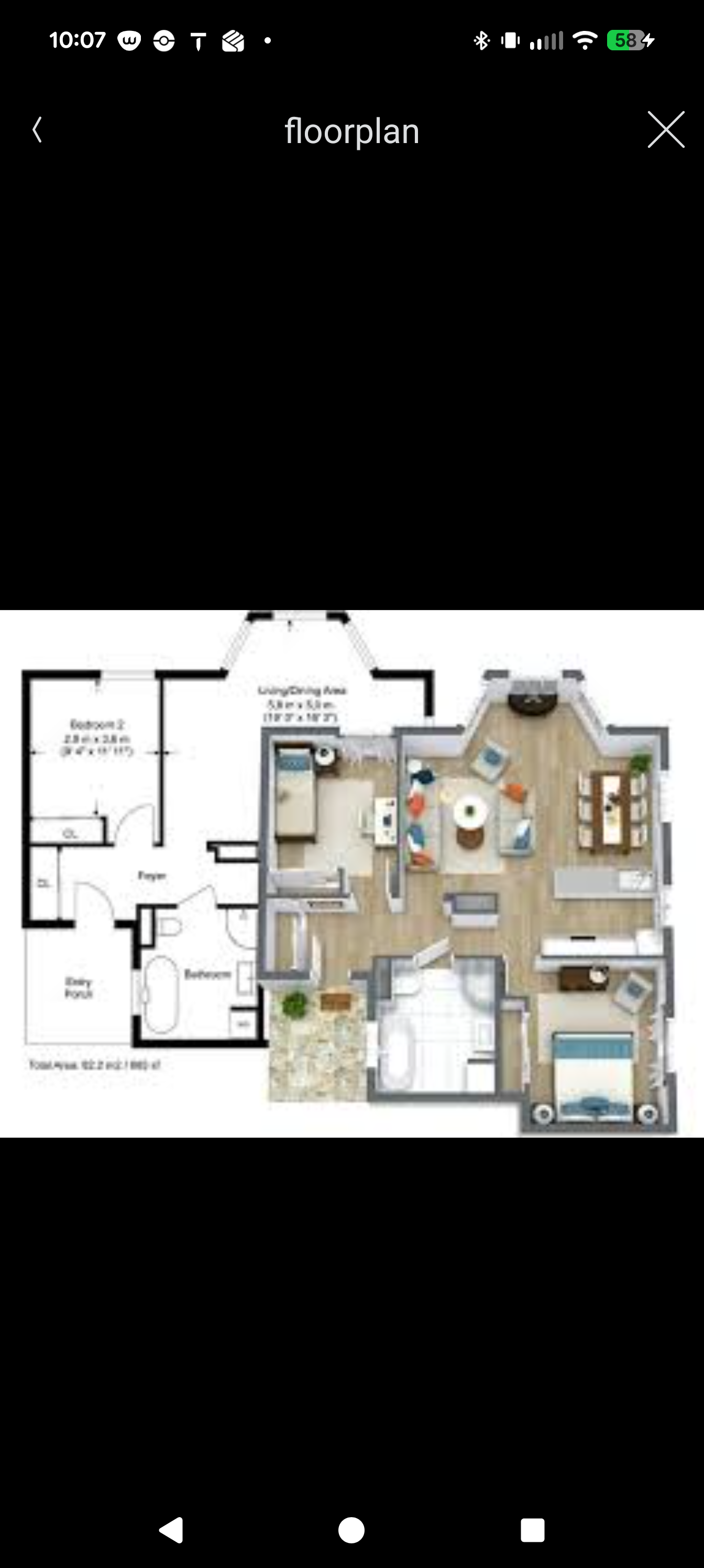
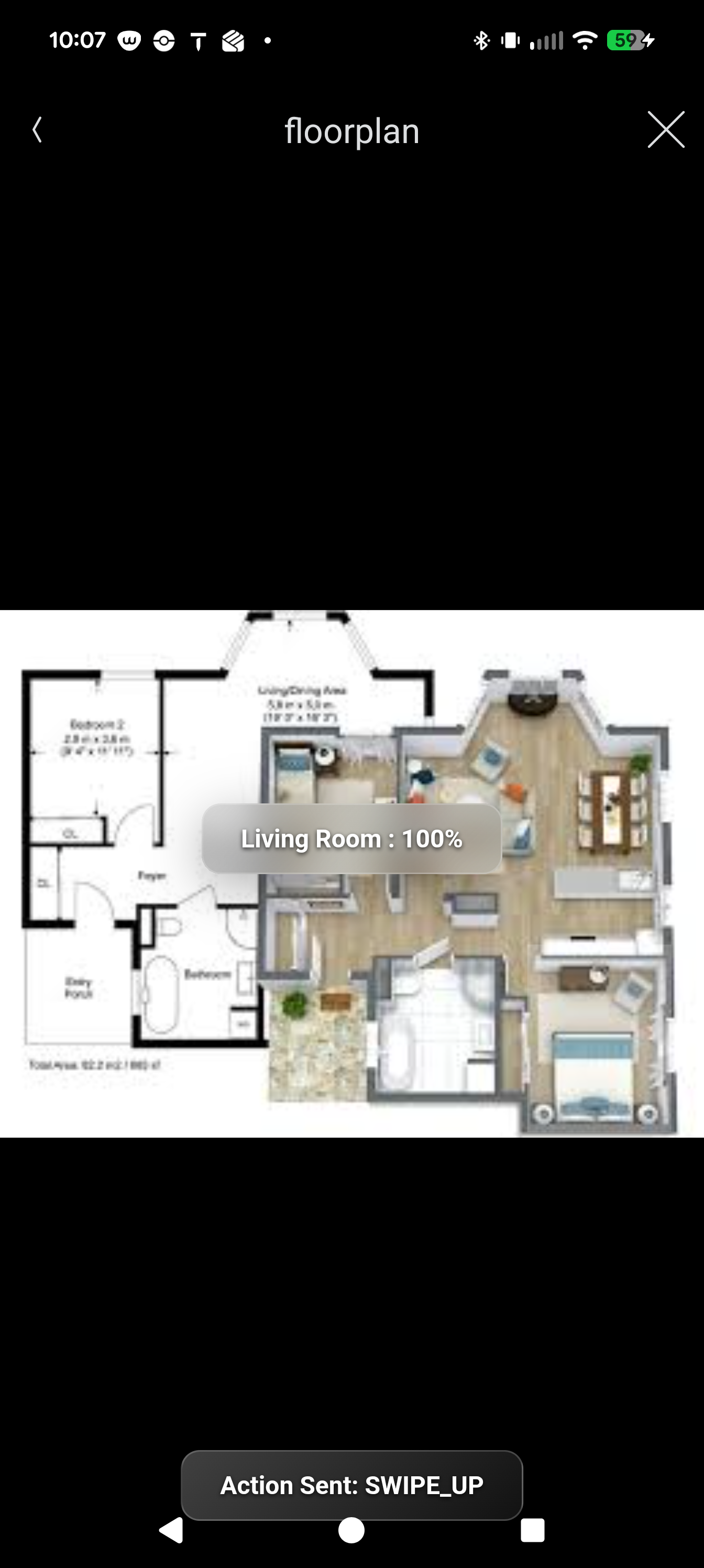
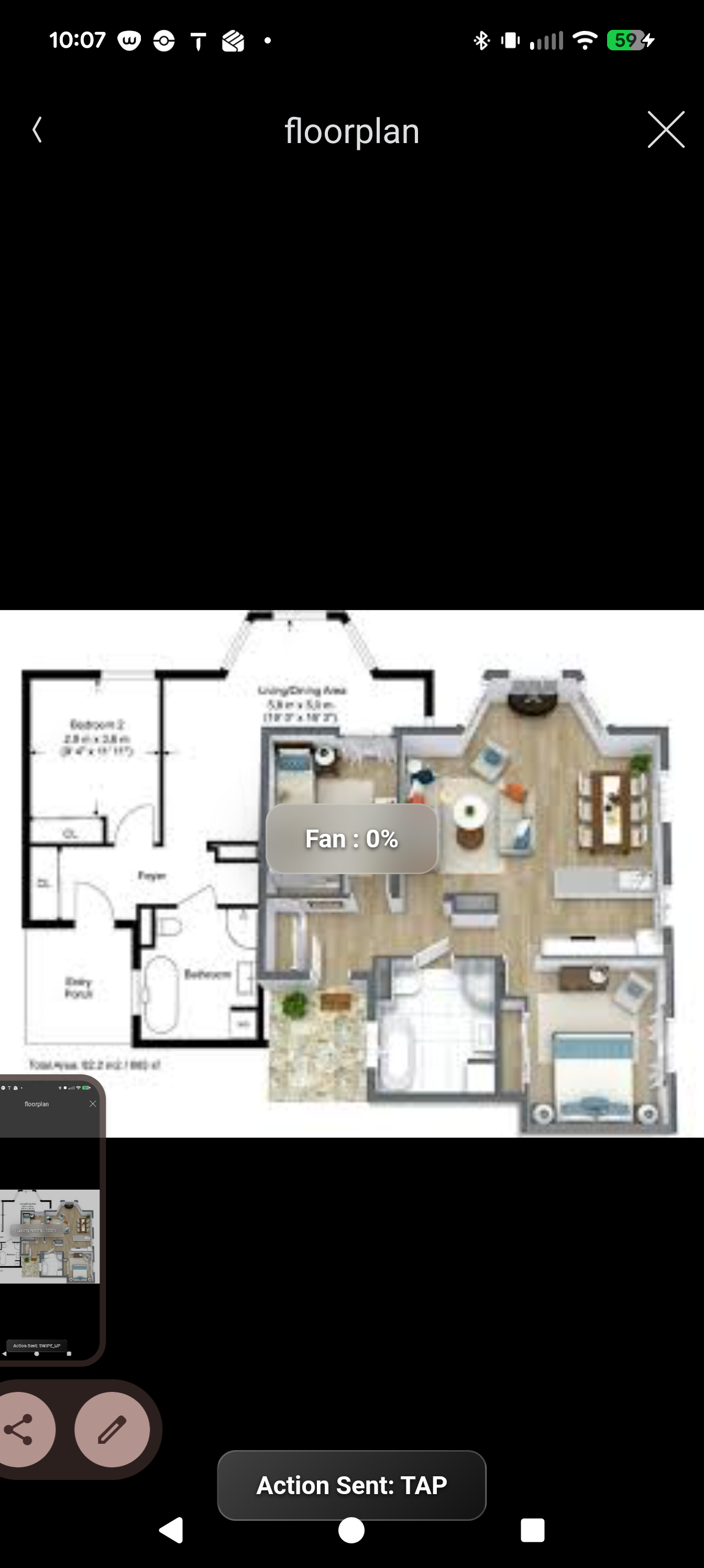
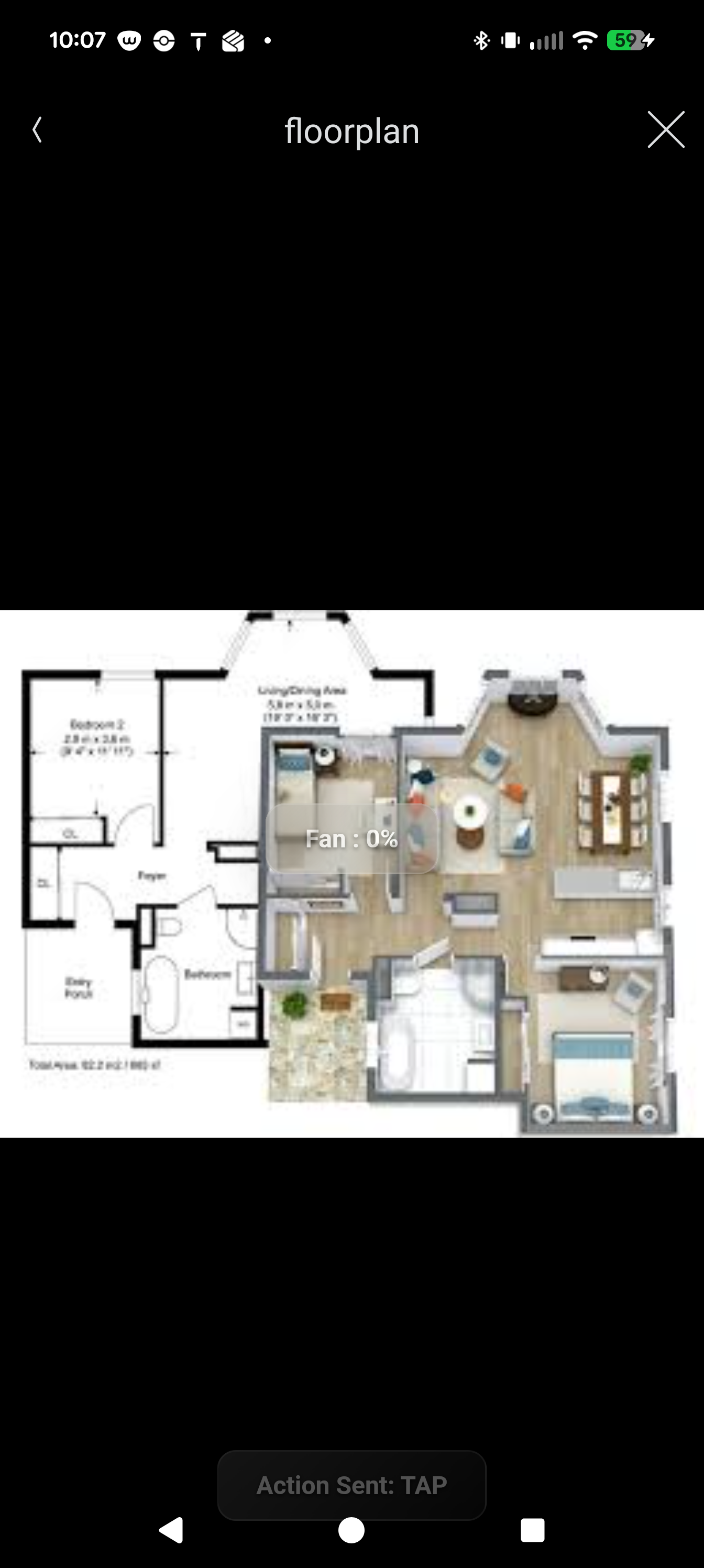
Transform how users interact with their Control4 environments. The HTI Zone UI Suite allows for the seamless import of custom images—ranging from family photos and floor plans to elevation drawings or custom Photoshop overlays—layering them with invisible, highly customizable interaction zones.
Whether using Composer Pro, Composer Home Edition, or any standard web browser (even snapping and uploading photos directly from a smartphone), dealers and end-users alike share the same intuitive toolset to freely design, deploy, and interact with custom UIs.
Architecture
This suite utilizes a streamlined, two-part driver architecture:
-
HTI UI Config (Parent Driver): The centralized configuration hub.
-
HTI Zone UI (Child Driver): The client-facing interface.
Prerequisites & Setup
For seamless UI auto-spawning without dealer intervention, ensure at least one instance of the HTI Zone UI.c4z driver is installed on the primary controller. In most cases, this is handled when the dealer creates the initial UI instance before handing the reins to the client. For dealers, simply keeping HTI Zone UI.c4z in your driver library ensures auto-spawning functions perfectly.
How It Works
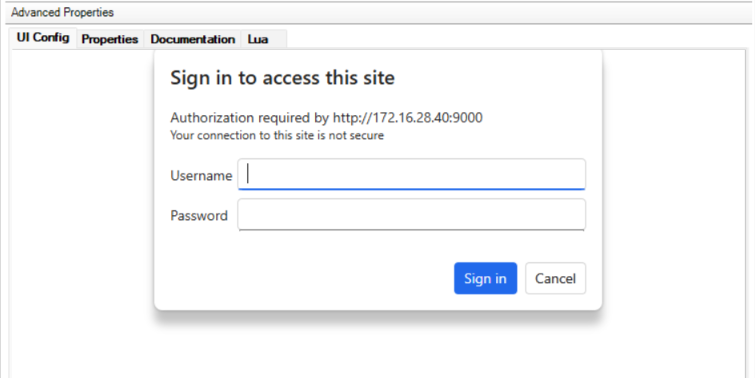
1. Secure Access Once the HTI Zone Config driver is installed and the license is activated, click the "Start Here" link in the UI Config tab. You will be prompted for credentials (default: admin / hti2026). This lightweight security ensures safe access from any web browser while keeping the configuration locked down.
2. Create & Design UIs There are currently no limits on the number of custom UIs you can create. In our test environments, we are running 15+ custom UIs simultaneously with zero performance degradation.
-
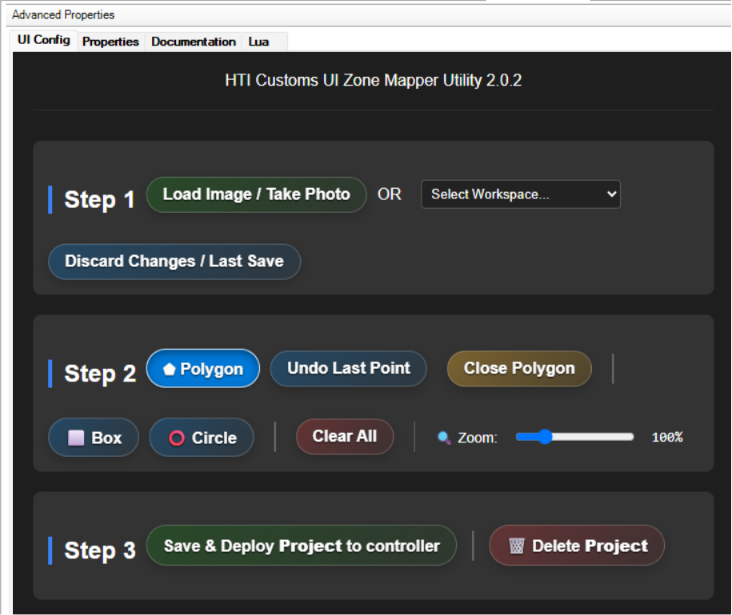
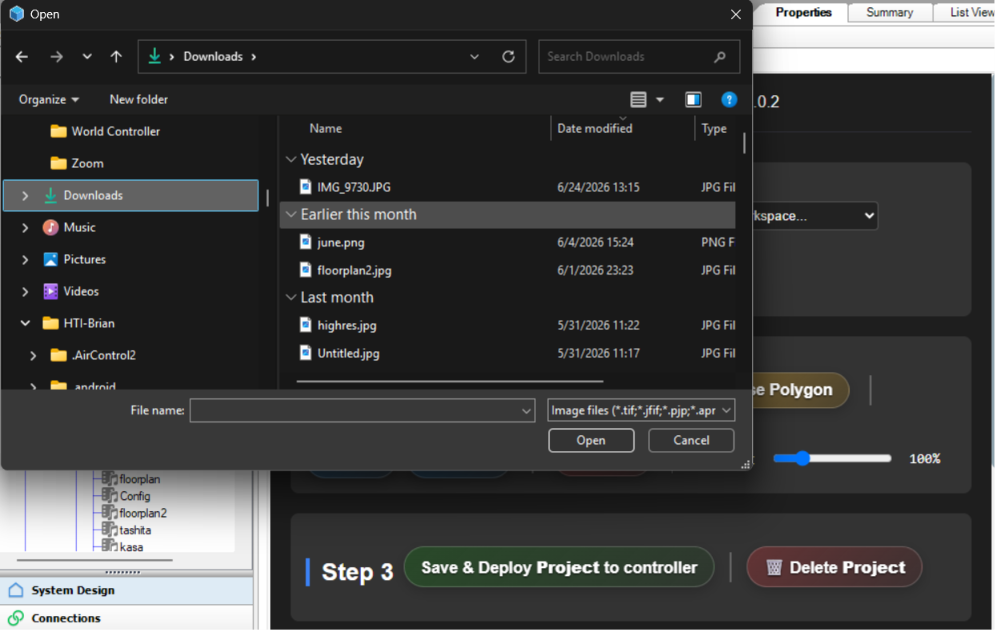
Load Your Canvas: Choose "Load Image / Take Photo" to upload an image directly into your workspace.
-
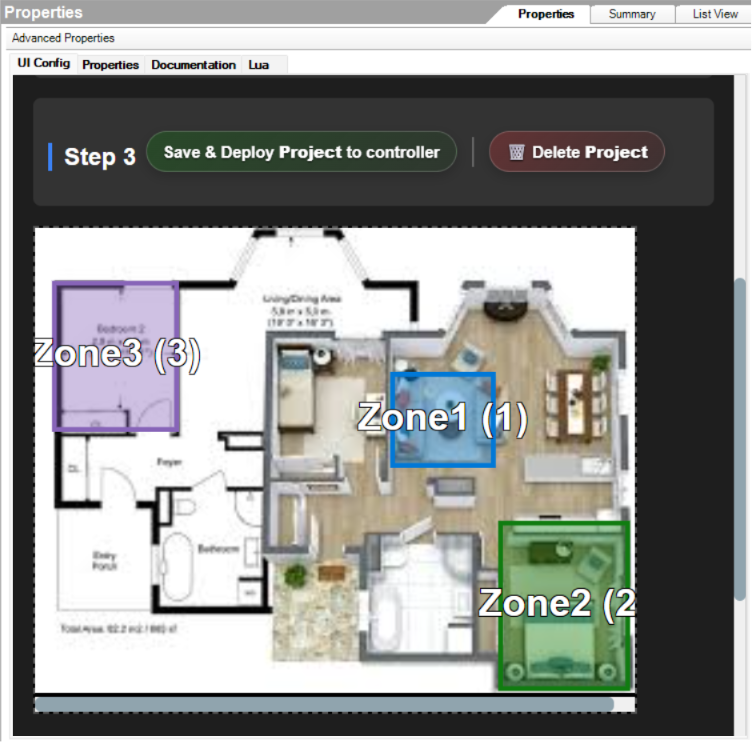
Draw Your Zones: Utilize three layout tools—a point-to-point Polygon tool for highly granular tracing, a Box tool, and a Circle tool. Draw invisible shapes over your desired interaction areas.
-
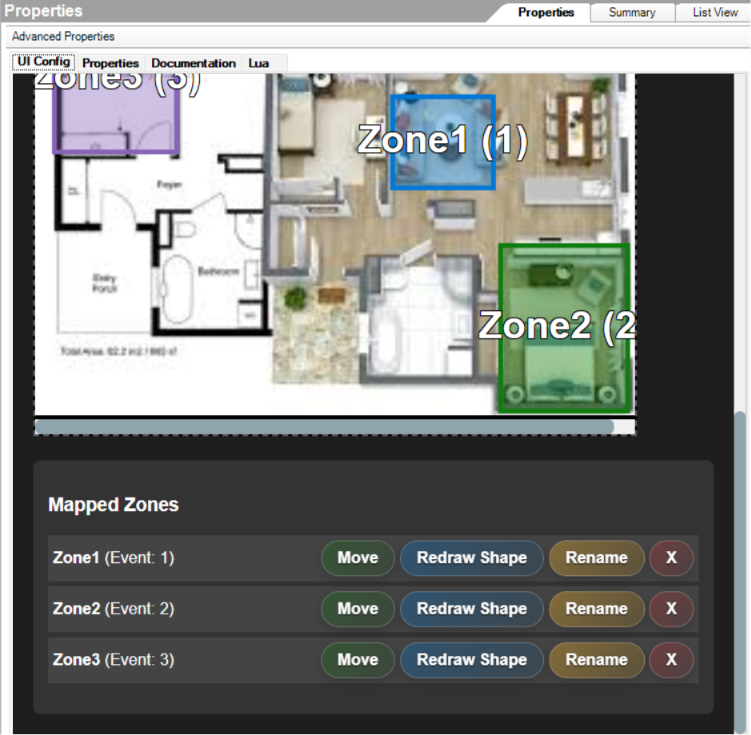
Scale Up: Map up to 12 independent feedback zones per UI.
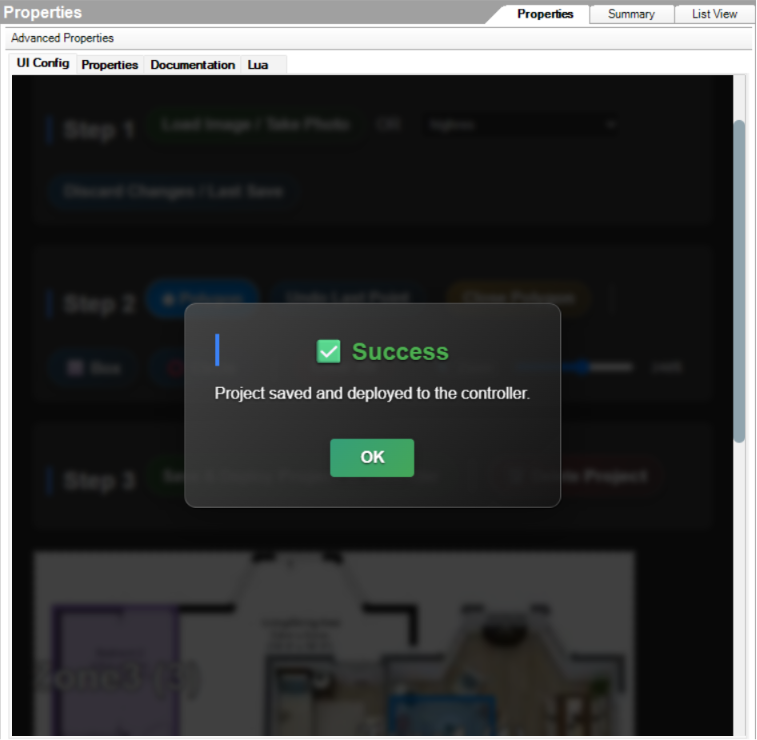
3. Save & Deploy When ready, click Save and Deploy Project to Controller. The parent Config driver automatically creates a proxy binding, spawns the UI child driver, and locks in the connections. Note: This auto-binding empowers self-service clients using Composer Home Edition, completely eliminating the need to wait for a dealer to manually connect the drivers.
Programming & Gestures
With the project deployed to the controller, your new UI is ready to program.
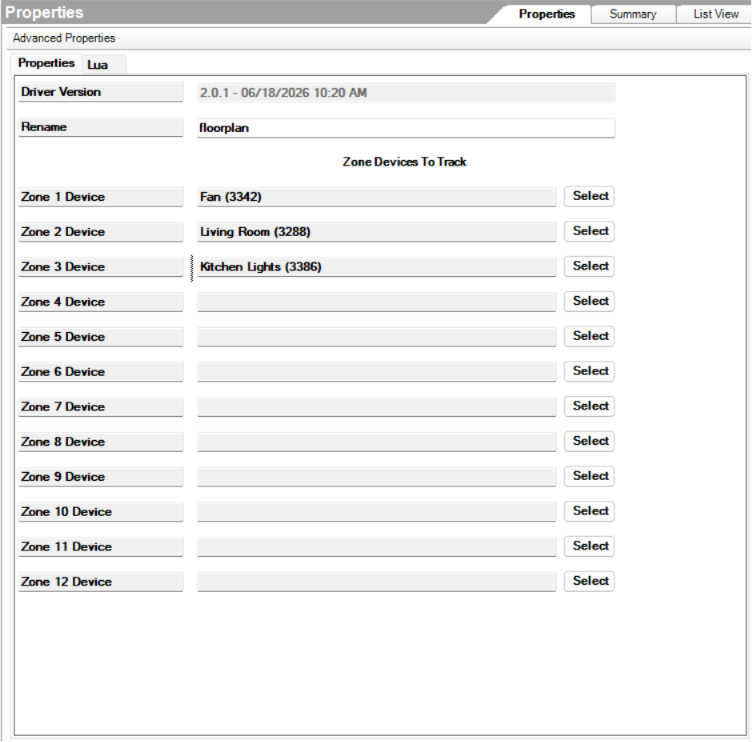
Device State Tracking (Properties Tab) We have provided 12 distinct zones to track lighting states. Simply select the specific load to follow (e.g., assigning Zone 1 to track the "Living Room Lights"). Additional device state tracking options are coming soon!
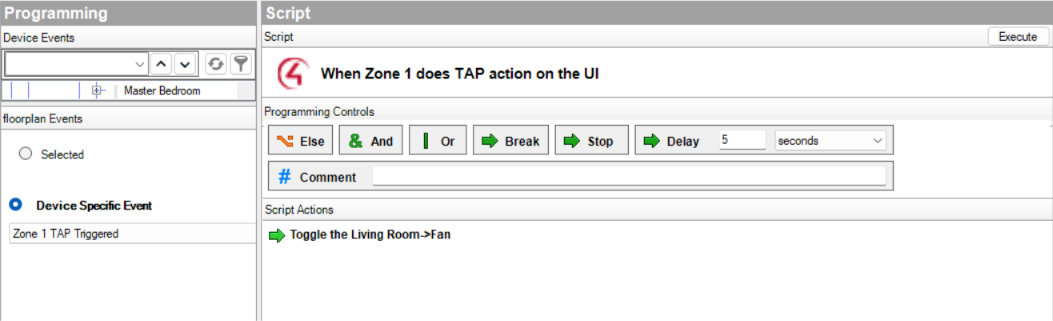
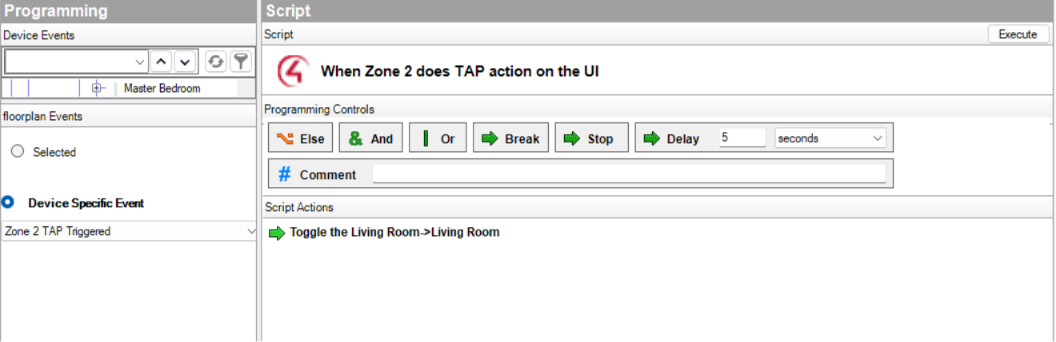
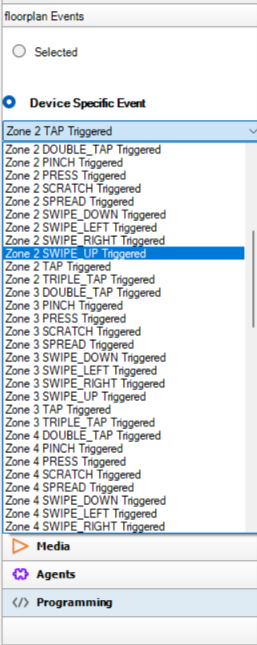
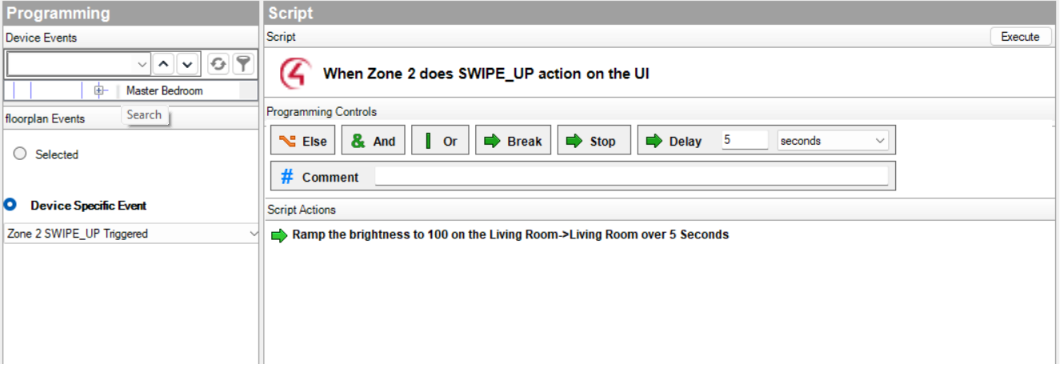
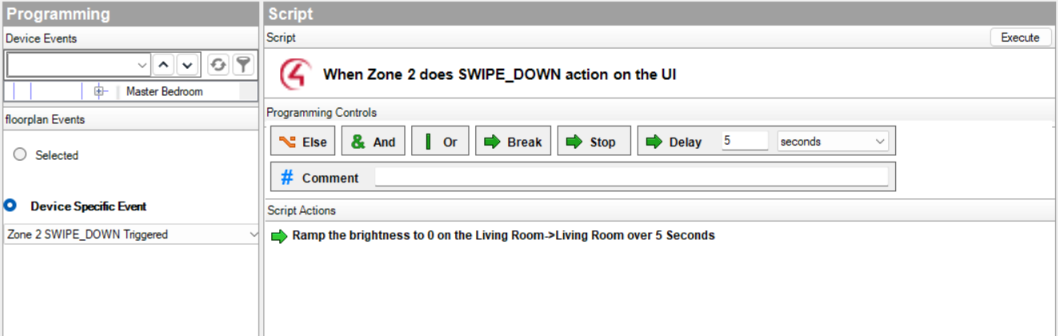
Advanced Gesture Control (Programming Tab) Move beyond standard buttons. We have provided a comprehensive library of unique gestures to trigger events:
-
Tap, Double Tap, Triple Tap
-
Press & Hold
-
Swipe (Up, Down, Left, Right)
-
Pinch & Spread
-
Scratch
Real-World Applications:
Use your imagination! Here are just a few ways these gestures have been deployed:
-
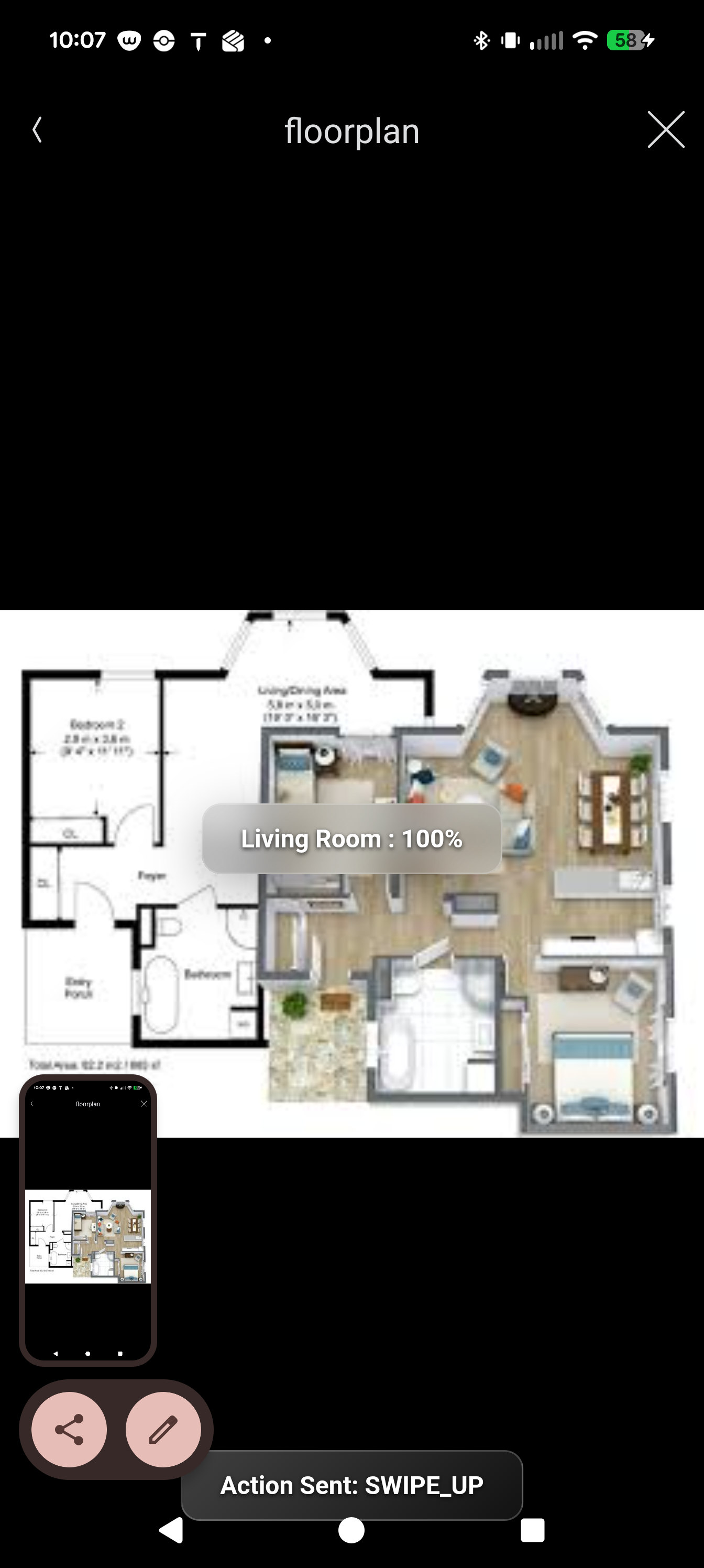
Floor Plan Control: Assign Zone 1 to the living room on a floor plan graphic. Swipe up to ramp the lights to a set value, and swipe down to dim them.
-
Intuitive Gate Control: Map Zone 1 over a photo of the client’s front driveway gate. Program a spread gesture to trigger the gate open command, and a pinch gesture to close it.
-
Exterior Management: Upload a photo of the home's exterior to control multiple devices from one screen.
-
Swipe up on the garage door to open it; swipe down to close.
-
Triple tap the front door to unlock it; press and hold to lock.
-
Use a scratch gesture over the courtyard fountain to toggle the water pump on and off.
-
Experience It Everywhere
Once programming is complete, add the UI driver to your desired location in Navigator. It can be made visible across any Experience Menu category.
Refresh Navigator, and your new interactive canvas is immediately available from any Control4 touchscreen, Android, or iOS mobile device using the Control4 app. Navigate to the UI you just created, watch your image pop up, and interact with your project in an entirely new way.
No posts found
HTI Customs: UI Zone Config Documentation
Description of Driver
Allows for easy import of images and draw invisible zones to trigger actions in the Control4 environment.
IMPORTANT DEPLOYMENT REQUIREMENT
VPN required for remote configuration
Driver Limitations & Known Issues
-
Due to the nature of how UI config screen works, due to Control4 VPN security, UI config screen is not available in Composer using Control4's remote services. To configure offsite/remotely MUST use your own VPN service into the network. We are exploring alternative configurations.
Properties Page Reference
-
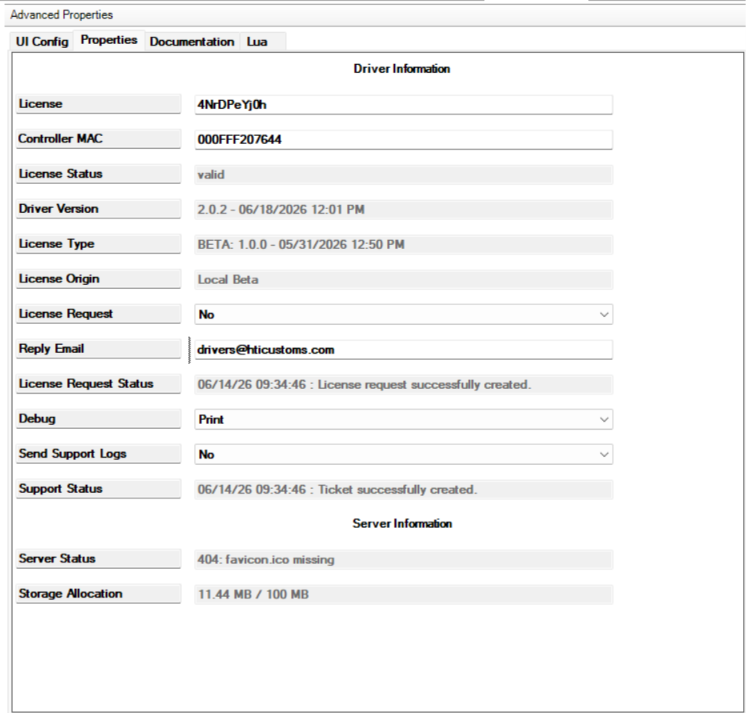
Cloud Status: Readout of whether the license is valid or not.
- Automatic Updates: Yes or No value.
- Driver Status: Readout of whether the license is valid or not.
-
Driver Version: Displays version information string and build date.
-
License Type: Displays the type of license that has been applied (Driver, Suite, or Site).
-
License Origin: Where the license key originated from.
-
Support Ticket: HTI Customs built-in support ticketing allows you to create a support ticket from within the properties page to get in touch with us about your needs. When YES is selected, additional fields will appear to type in your email address and click SUBMIT TICKET.
-
Server Status: Read out of last message.
Installation & Setup Guide
-
Upload image.
-
Draw shape of zone: Tap a point on the image, tap another, tap another and so on to trace out your desired shape. Or click box or circle and draw shape.
-
Click close appropriate shape button.
-
Repeatable up to 12 zones (could do more but only capable of mapping devices to 12 zones for feedback).
-
Click Save and deploy project to controller.
-
Add Driver HTI Zone UI.c4z. (Zone UI.c4z now auto-spawns as of 06-18-2026)
-
Bind Zone UI to the appropriate UI binding. (Zone UI now autobinds as of 06-18-2026)
-
Rename driver to desired name.
-
Make visible in appropriate locations in navigator.
-
Repeat.
-
ENJOY!
For Driver Support: Use the built-in support ticketing on the properties page of the driver.
Changelog:
Ver 2.1.0 — 07-08-2026
-
Added - Dynamic Icons, creates a dynamic icon of the workspace image and pushes to HTI Zone UI.c4z driver
Ver 2.0.3 — 06-25-2026
-
Added - DC licensing system
- Added - Additional variables devices for variable tracking
Ver 2.0.2 — 06-18-2026
-
Changed - Zone UI config now has 12 distinct colors for zone index (originally 6)
-
Fixed - Delete project not fully erasing all associated code
-
Note - Purpose of these changes: The Zone Config UI is accessible via web browser for client / end-user interaction. Client can go to url from native web browser on their mobile device and upload their own custom images, to remove dealer interaction and access to photos or user devices. This was the purpose of password protecting the Zone Config UI page. It is intentionally being exposed.
-
Added - Auto spawn and bind HTI Zone UI.c4z upon successful push of workspace project to controller
-
Note - This allows end users with Composer Home to do their own gesture programming and navigator settings, since Composer Home doesn't allow for connection changes, this is why auto spawn and auto bind was implemented. Client just makes Zone UI visible in desired navigator category.
-
Added - Property to rename Zone UI driver in HTI Zone UI.c4z for Composer Home users
Ver 2.0.1 — 06-12-2026
-
Changed - Upload image button to Load / Take photo button
-
Added - Flyout menu for Load / Take photo button to compensate for iOS/Android OS inconsistencies while handling browser calls to access camera and gallery
-
Note - Purpose of these changes: The Zone Config UI is accessible via web browser for client / end user interaction. Client can go to url from native web browser on their mobile device and upload their own custom images, to remove dealer interaction and access to photos or user devices. This was the purpose of password protecting the Zone Config UI page. It is intentionally being exposed.
-
Added - Auto spawn and bind HTI Zone UI.c4z upon successful push of workspace project to controller
-
Note - This allows end users with Composer Home to do their own gesture programming and navigator settings, since Composer Home doesn't allow for connection changes, this is why auto spawn and auto bind was implemented. Client just makes Zone UI visible in desired navigator category.
-
Added - Property to rename Zone UI driver in HTI Zone UI.c4z for Composer Home users
Ver 2.0.0 — 06-08-2026
-
Fixed - Binding restore issue not populating UI after restart
-
Removed - Zones from UI Config Driver
-
Added - Zones to Zone UI Driver
-
Added - Popup 2-way feedback of tracked devices (Name:Light Level)
-
Added - Capability of remote access on iOS and Android
-
Added - Zone UI config from iOS and Android, config no longer needs to be done from Composer UI Config tab
-
Updated - Documentation - draw shapes
Ver 1.5.4 — BETA 06-05-2026
-
Fixed - URL not loading on iOS devices (HTI ZONE UI.c4z)
-
Fixed - Project list dropdown no longer comes down (oversight in correcting driver stall)
Ver 1.5.3 — BETA 06-05-2026
-
Fixed - Driver would stall on initial install if no workspaces defined
-
Added - Haptic feedback
-
Added - Storage Usage Calculation
Ver 1.5.2 — BETA 06-04-2026
-
Fixed - Zone persists a highlight after "scratch" gesture
Ver 1.5.1 — BETA 06-04-2026
-
Fixed - Deletion of project failed to remove from dropdown list in UI Config and composer
-
Added - Login protection for UI config page. (default admin/hti2026)
-
Added - Pinch, Spread gestures for gate usage
Ver 1.5.0 — BETA 06-02-2026
-
Fixed - Device mapping if included in multiple pages tracks properly
-
Added - 2-way feedback (Light value popup to show confirmation)
Ver 1.0.2 — BETA 06-01-2026
-
Fixed - Project workspace loading made easier in UI Config Tab
-
Fixed - UI issue when moving a zone
-
Added - Discard changes
Ver 1.0.1 — BETA 05-30-2026
-
Added - Zoom capability for images that didn't fill workspace in UI Config Tab
-
Added - Easier to use dropdown menu for workspace projects in UI Config Tab
-
Added - Property: Active Workspace Config
-
Added - Property: Zones 1-12 for workspace device mapping for 2-way feedback to UI
-
Changed - Updated documentation and hardcoded 12 zones in properties tab for device mapping
Ver 1.0.0 — Init BETA 05-29-2026
-
Initial Beta Release
