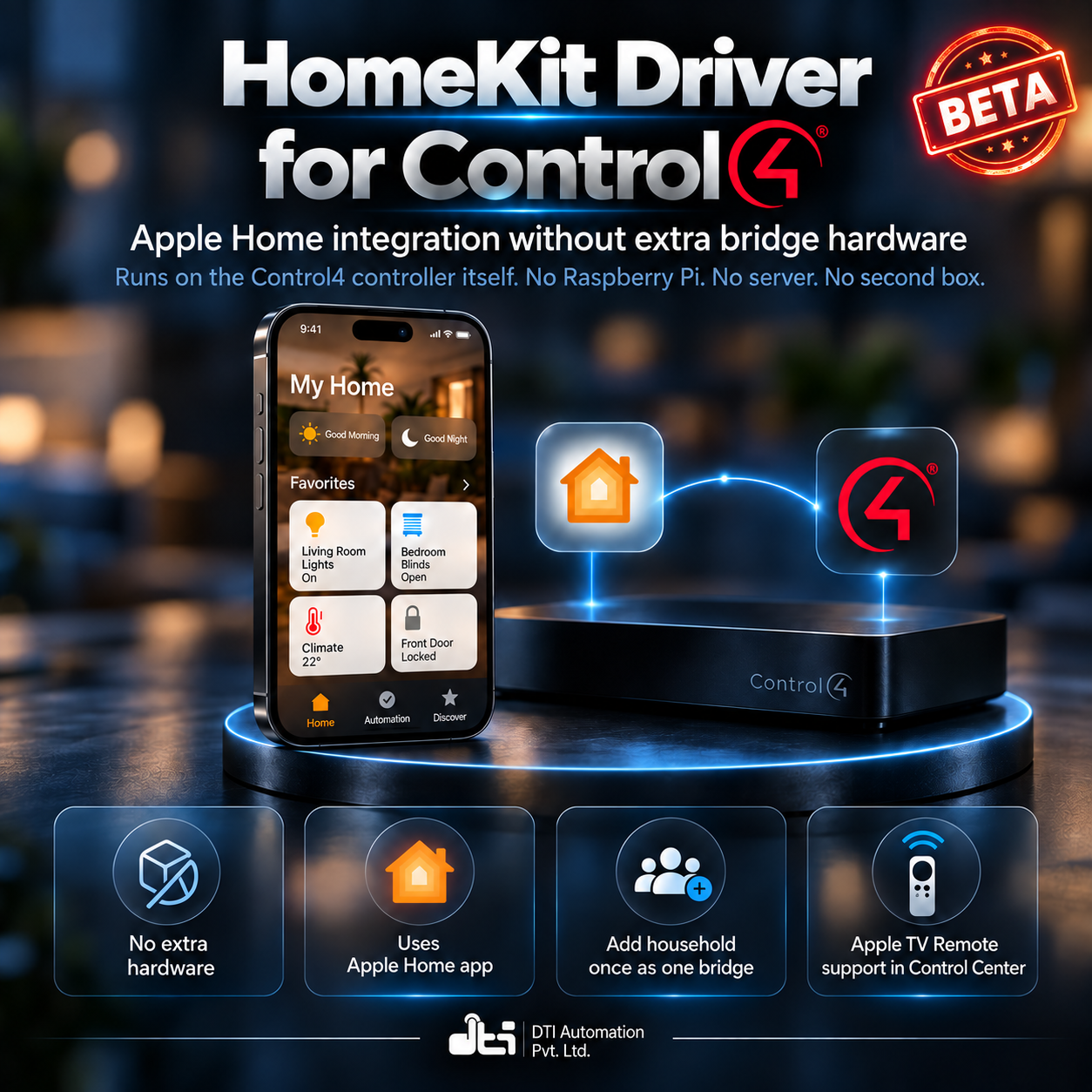


No extra hub, no Raspberry Pi and no server: the HomeKit Bridge driver runs on the Control4 controller itself and brings Control4 devices into the Apple Home app.
The bridge itself runs on the Control4 controller. The household uses Apple's own Home app on their iPhone and iPad. The bridge needs no separate box, Raspberry Pi or server to buy, host, power or keep updated.
The DTI Automation HomeKit Bridge driver publishes the Control4 devices a dealer picks to the Apple Home app, where the devices appear as standard Home app tiles that work from the Home app and in Home automations (controllable ones also in Home scenes), while controllable devices such as lights, locks and garage doors also respond to Siri.
Key Features
- No extra bridge hardware to buy, host or power. The driver runs on the Control4 controller itself, so the bridge needs no Raspberry Pi, no server and no second box beside the controller. The driver is added to a room in Composer, and the devices it publishes reach the Apple Home app as one bridge that the household adds once.
- The household uses Apple's own Home app. Control4 devices appear on the iPhone and iPad as standard Home app tiles, so there is no extra app for the household to install, and the Apple TV Remote in the iPhone's Control Center steers room televisions and speaker zones.
- Apple Home setup from the Control4 app. The household can add the home to Apple Home with a QR code or the 8-digit setup code, and choose which lights, shades, climate, locks, sensors, scenes, room TVs and extra switches appear there — no Composer visit needed. Installers can turn this off with the new Homeowner Setup property. Copy button beside the setup code, so it can be pasted straight into the Home app.
- Managed from Composer for Installer. The devices to publish are chosen on the driver's Properties tab, and new versions arrive through Composer's Add or Update, or through DriverCentral when Automatic Updates (Off by default) is switched On. Full dealer documentation — every property, connection, action, programming command, event and variable, with programming examples and a troubleshooting guide — ships inside the driver on its own Documentation tab in Composer.
- Pairings survive reboots and driver updates. Pairings, the setup code and the published devices survive a controller reboot, and an update with Composer's Add or Update keeps every pairing, so the household's Home app goes on working with nothing to re-add.
- Stays in step with Control4 by itself. A few seconds after devices are picked or removed in Composer the Home app refreshes with no reload and nothing to add again, and lights, outlets, thermostats, shades, fans, locks and sensors picked from the lists arrive named with their Control4 room followed by their device name (the room is left off when the name already contains it). Lights, outlets, shades, fans, lighting scenes and the alarm panel show changes made from keypads, Navigator and programming.
- Says in plain words what it is doing. Status, Last Error and Devices Published say in plain words what the bridge is doing, and Rescan Devices brings the Home app back in step on demand. Status and Last Error need no logging switched on, and Last Error is blank whenever nothing has failed.
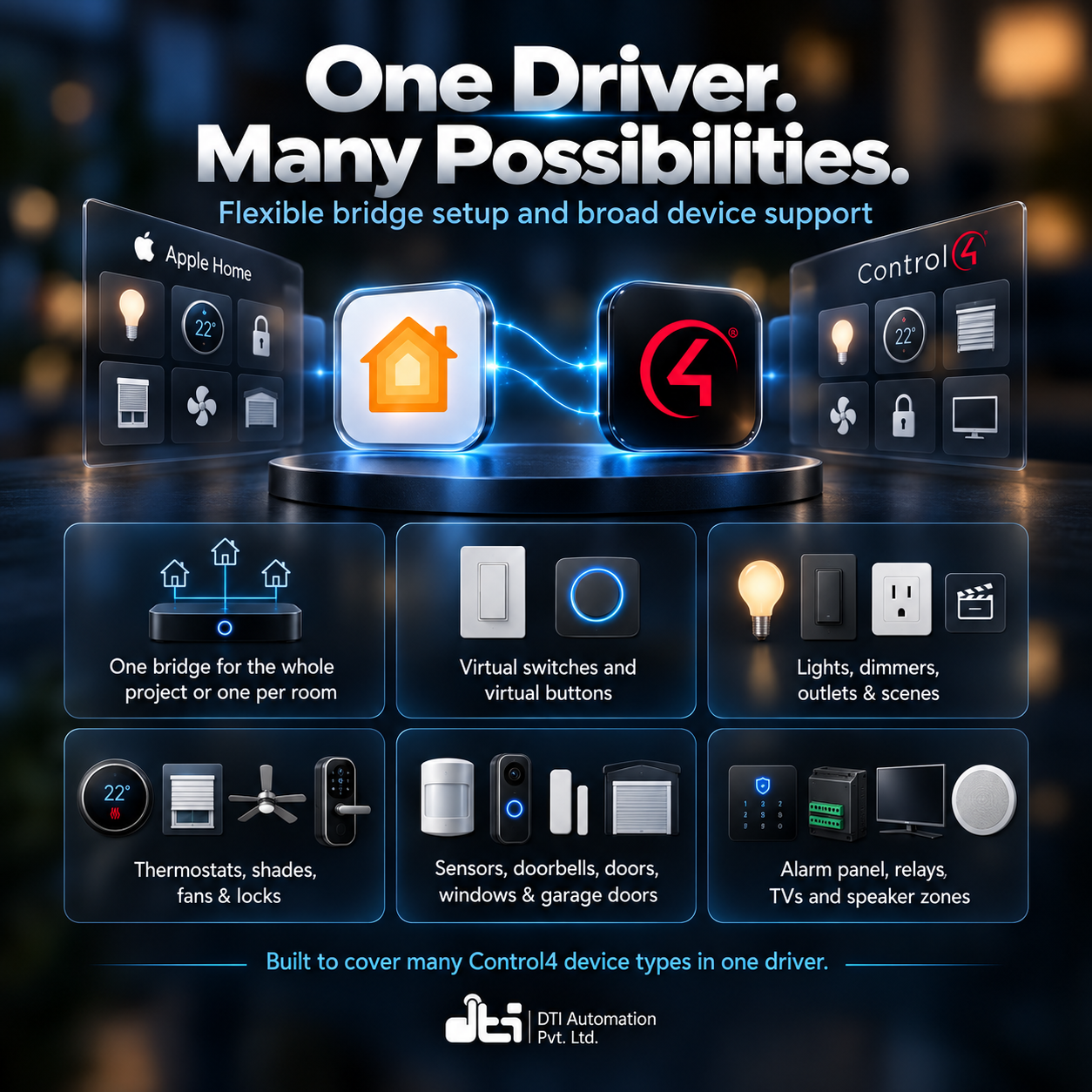
- One bridge for the whole project, or one in each room. Add one driver for the whole project or one in each room; each bridge is added to the Home app separately with its own setup code. Copies work side by side with no extra setup.
- Home app activity and Control4 programming linked. Virtual switches and virtual buttons link Home app activity with Control4 programming. Up to eight of each are available: virtual switches link Home app automations and Control4 programming in both directions, and virtual buttons let Control4 programming start Home app scenes and automations.
- Many kinds of device in one driver. One driver covers lights and dimmers, outlets, lighting scenes, thermostats, fans, shades, doors, windows, garage doors, locks, relays, sensors, doorbells, an alarm panel and Control4 rooms shown as televisions or speaker zones.
What You Can Control
- Lights and dimmers appear in the Home app. Each light shows up as a light tile with on and off, a brightness slider on dimmers, colour temperature on tunable-white fixtures and the colour picker on colour fixtures. Each light arrives with the controls that suit it, and turning a dimmer on returns it to its last brightness, or to the default On brightness set in Composer.
- Lighting scenes become Home app switches. Turning a switch on runs the scene, turning it off runs the scene's Toggle scene from the Advanced Lighting agent, and the switch follows the scene when it is started from a keypad, Navigator or programming.
- Outlets show as outlets. Lighting loads that feed outlets, such as outlet switches, outlet dimmers and switched lamp outlets, appear as outlets with on and off when the dealer picks them as outlets, so Siri and the household see an outlet rather than a lamp. An outlet dimmer turned on from the Home app goes to full power.
- Thermostats follow the mode and the dial. Each thermostat shows its current temperature, heating or cooling status, the modes it offers (Off, Heat, Cool, Auto) and a dial that sets the heat or cool target to match the active mode, and where a thermostat has separate heat and cool ranges, Auto shows a two-handle range that sets both together. A thermostat with a single setpoint gets one dial, and the Home app follows the thermostat's own scale and setpoint range.
- Fans with speed and direction. Each fan appears with on and off, plus a speed slider on fans with more than one speed: one step per fan speed, or a smooth 0-100% slider on variable-speed fans. Reversible fans also get a direction control, and turning a fan on returns it to the speed last used, or to the fan's preset speed.
- Sensors, each as the right kind of tile. Contact sensors show as Open or Closed and motion sensors as motion or clear, motion sensors and pressure mats can show as Occupied or Not Occupied, and leak, smoke and carbon monoxide sensors get their own icon and alert. The Home app can notify the household when a leak, smoke or carbon monoxide sensor detects, and contact, motion and occupancy sensors can start Home automations.
- Temperature and humidity for Home automations. The readings of thermostats and of stand-alone room, outdoor or weather sensors are published for use in Home automations. Other sensors come in through the Temperature Sensor 1 to 4 and Humidity Sensor 1 to 4 connections bound in Composer, and a sensor tile shows a fault when its device reports it has gone offline, clearing with the next reading.
- Doorbells ring in the Home app. Every press of a doorbell button rings the Home app, so the household gets a doorbell notification and the press can start a Home automation.
- Shades and blinds as window coverings. Shades that report their position appear with a 0-100 percent position slider and show opening and closing while they move, and shades that only open and close show as open or closed. Shades installed with their ends the other way round still read correctly, and movement from keypads, Navigator or programming shows up in the Home app.
- Doors, windows and garage doors. Motorised doors and windows appear with a position slider and live position, relay-driven ones open or close fully, and each garage door opener or gate shows as Open, Closed, Opening, Closing or Stopped where the opener reports its state, with an open and close button. Siri accepts commands such as open the garage door, and a motorised shade or blind can appear as a shade, a door or a window.
- Door locks with Siri and automations. Each lock shows as Locked or Unlocked, with lock and unlock controls from the Home app, Siri and automations on locks that accept them. Locks that report their battery also show a low-battery warning, and the battery level where the lock reports one, and relay-driven door strikes appear as locks too.
- Relays become switches. Fireplace, gate and sprinkler relays, and Control4's gate, door and window relay controllers, appear as Home app switches that follow the relay's contact state where the relay reports one. Momentary Relays gives one short press per tap, with the press length set in Relay Pulse (ms) from 100 to 10000 milliseconds.
- A reversed sensor or relay is corrected in one place. Inverted Sensors and Relays corrects a contact, motion, leak, smoke, carbon monoxide, doorbell, relay, relay-driven door lock or relay-and-contact garage door reading that arrives backwards. The change applies a few seconds later with no reload.
- The alarm panel, one tile per partition. Each active partition of a Control4 security panel appears as its own security system with Off and Away, plus Home and Night where the panel has a matching arm mode, following arming from keypads, Navigator and programming. Arm Mode for Home, Arm Mode for Away and Arm Mode for Night match panels that name their modes differently, and Hide Partition and Show Partition choose which partitions the household sees.
- Arm and disarm from the Home app without typing a code. The installer enters a user code once in Security Arm Code and every arm and disarm request from the Home app uses it. Bypass Open Zones When Arming is False by default; set it to True and the Home app arms with open zones bypassed, and disarming always goes through.
- Control4 rooms become Apple Home televisions or speaker zones. Each published room appears with power, an input list built from the room's watch or listen activities, a place in the Apple TV Remote in the iPhone's Control Center, and the iPhone's volume buttons raise and lower the room volume. Choosing an input starts that activity in the room, and the tile follows Navigator for input, power and mute.
- Each room is set up on its own. Room TV chooses watch activities, watch and listen activities or listen activities for a speaker zone, Default Activity decides what turning the television on starts, and Hidden Activities hides rarely used sources from the input list, and the household can show one again in the accessory's settings. One driver for the whole project can publish rooms, each as its own television or speaker zone.
- Virtual switches run Control4 programming from Apple Home. Set Virtual Switches from 0 to 8 and each appears in the Home app as a switch that fires the matching On and Off events in Composer, so a tap, Siri or a Home automation can start Control4 programming. Programming can turn each switch on, off or toggle it, keypad buttons can be bound to it with LEDs that follow, and Virtual Switch Revert (s) makes the switches momentary.
- Virtual buttons run Home scenes from Control4. Set Virtual Buttons from 0 to 8 and each appears in the Home app as a programmable button, and the household chooses what its Single Press, Double Press and Long Press do. The Trigger Virtual Button command sends any of the three presses from Control4 programming, and a keypad button bound to a Virtual Button connection sends a Single Press.
Supported Devices
- iPhone — with Apple's Home app: adds the bridge with the setup code, then controls the picked Control4 devices from the Home app, with Siri, in Home scenes and in Home automations.
- iPad — with Apple's Home app: adds the bridge the same way and follows changes.
- Apple TV — as the home hub that runs Home app automations, including those started by virtual switches and virtual buttons.
- HomePod — as the home hub, in place of an Apple TV.
- Apple TV Remote in Control Center — steers a Control4 room published as a television or speaker zone with the direction pad, select, back, play/pause, info and power buttons, and the iPhone's volume buttons raise and lower the room volume.
- Siri — voice control of lights, locks, garage doors and other controllable devices, for example opening the garage door.
Requirements
- Control4 OS — 4.0 or later.
- iPhone or iPad with Apple's Home app. The bridge is added from there, with the iPhone or iPad signed in to the household's home and on the same network as the controller.
- Apple home hub — Apple TV or HomePod. Home app automations run on the home hub, including those started by the virtual switches and virtual buttons.
- Scenes and room activities. Lighting scenes are the project's Advanced Lighting scenes, and a room shown as a television or speaker zone uses the room's watch or listen activities.
- A licence. Either a DriverCentral licence, which needs the DriverCentral Cloud driver in the project, linked to the dealer's drivercentral.io account, or a DTI Automation activation key, which needs the controller to have internet access to check the key. Both include a 30-day trial.
Setup
- In Composer, add the HomeKit Bridge driver to the room it will serve.
- Check the licence rows at the top of the Properties tab. Set Activation Method to DriverCentral or DTI. For DriverCentral, add the DriverCentral Cloud driver to the project, assign the licence on drivercentral.io and read Cloud Status. For DTI, enter the activation key into Activation Key and wait for Activation Status to read Activated (or Trial with the hours left).
- Optional: type a name for the bridge into Bridge Name. Left empty, the bridge is named after its room with -C4 added. The driver puts a four-character code in front and hyphens between words, and the row shows the full name as the Home app will list it, for example 3F2A-Den-C4.
- Pick the Control4 devices, scenes, security system and rooms in the lists lower on the Properties tab: Select Lights, Select Outlets, Add Lighting Scene, Select Thermostats, Select Shades, Select Fans, Select Sensors, Select Occupancy Sensors, Select Safety Sensors, Select Temperature Sensors, Select Humidity Sensors, Select Doorbells, Select Garage Doors, Select Doors, Select Windows, Select Locks, Select Relays, Select Security System and Select Rooms. Then set Virtual Switches and Virtual Buttons to the number of each you need, from 0 to 8. Wait a few seconds and check that Devices Published shows the number expected. Changes apply with no reload.
- Wait for Status to read ready, with the device count and the setup code.
- Read the Setup Code row, or run Actions → Show Setup Code to put it on Status. The code is eight digits in two groups of four, followed by the bridge's name in brackets.
- On an iPhone or iPad on the same network as the controller, open the Home app, tap +, then Add Accessory, then More options. Tap the tile whose name begins with the same four characters as the name shown in Bridge Name and type the eight digits.
- Assign the bridge and its devices to rooms in the Home app.
- Confirm the result: Paired Controllers changes from none to a number, Last Error is blank and Devices Published shows the expected count.
- For a room published as a television or speaker zone, tick it in Select Rooms, which switches it on by itself, or in a copy of the driver in that room set Room TV. Pick the room in Configure Room to see or change its settings, then read Setup Code (TV) and Rooms Published. Add each room from Add Accessory, More options, by the name in brackets on the Setup Code (TV) row, with its own code.
- Handover: record the Setup Code. For a new owner, run Actions → Reset Pairings and have them add the bridge with the same setup code. A room published as a television has its own Reset TV Identity And Pairings action.
Licensing
Sold and licensed through DriverCentral, and available directly from DTI Automation. Each channel includes a 30-day trial, and a valid licence from either keeps the driver working.
Once DriverCentral or DTI reports the licence valid, the bridge answers again within a few seconds and announces itself, so paired iPhones and iPads reconnect without anything to add again, with no driver reload or controller restart. Status and Last Error say in plain words what to do about a licence problem.
Set Activation Method at the top of the Properties tab to DriverCentral or DTI to match where you bought it. Cloud Status shows DriverCentral's own wording for the licence, including the days left in a trial, and Automatic Updates (Off by default) can be switched On to let DriverCentral install new versions. Activation Key and Activation Status cover a DTI purchase.
Support
Technical support is available through https://help.drivercentral.io.
Before raising a ticket, have the Driver Version, Status, Last Error and Devices Published values, your controller model and OS version, the iOS version of the iPhone or iPad, the home hub model, what was done and what happened instead, and a log if the problem can be reproduced.
To capture a log, raise Log Level and set Log Mode to Print and Log. The Report Bridge State action puts the number of pairings and open connections on Status, with more detail in the log, to go with a ticket.
Driver by DTI Automation Pvt. Ltd. Apple, HomeKit, the Home app and Siri are trademarks of Apple Inc. This driver is not made by, endorsed by or affiliated with Apple Inc.
Driver documentation ships inside the driver itself on its own Documentation tab in Composer.
- Ver:87 Control4 first, as before: the bridge still asks Control4 for the port. On older OS versions nothing changes.
Shares when refused: if Control4 says no, the bridge opens its own socket that shares the port with the controller’s mDNS services, and answers the Home app through it. A single bridge, like Dennis’s, does this straight away.
Several bridges in one project: one shares the port for all of them, usually within a minute of starting, and the rest register with it as they do today.
If even sharing fails: Status and Last Error now say why in plain words, instead of “does not hold the mDNS socket”. - Ver:85 New: Apple Home setup from the Control4 app. The household can add the home to Apple Home with a QR code or the 8-digit setup code, and choose which lights, shades, climate, locks, sensors, scenes, room TVs and extra switches appear there — no Composer visit needed. Installers can turn this off with the new Homeowner Setup property.
Copy button beside the setup code, so it can be pasted straight into the Home app. - Ver:81 Beta release of HomeKit Bridge for Control4, running on the Control4 controller itself with no Raspberry Pi and no server, and publishing lights, scenes, outlets, thermostats, fans, shades, doors, windows, garage doors, locks, relays, sensors, doorbells, an alarm panel and room televisions to the Apple Home app.
Up to eight virtual switches and eight virtual buttons link Apple Home and Control4 programming, and licensing runs through DriverCentral or DTI Automation with a 30-day trial.
