





Casambi Lighting for Control4.
Local control through the Lithernet Casambi Gateway.
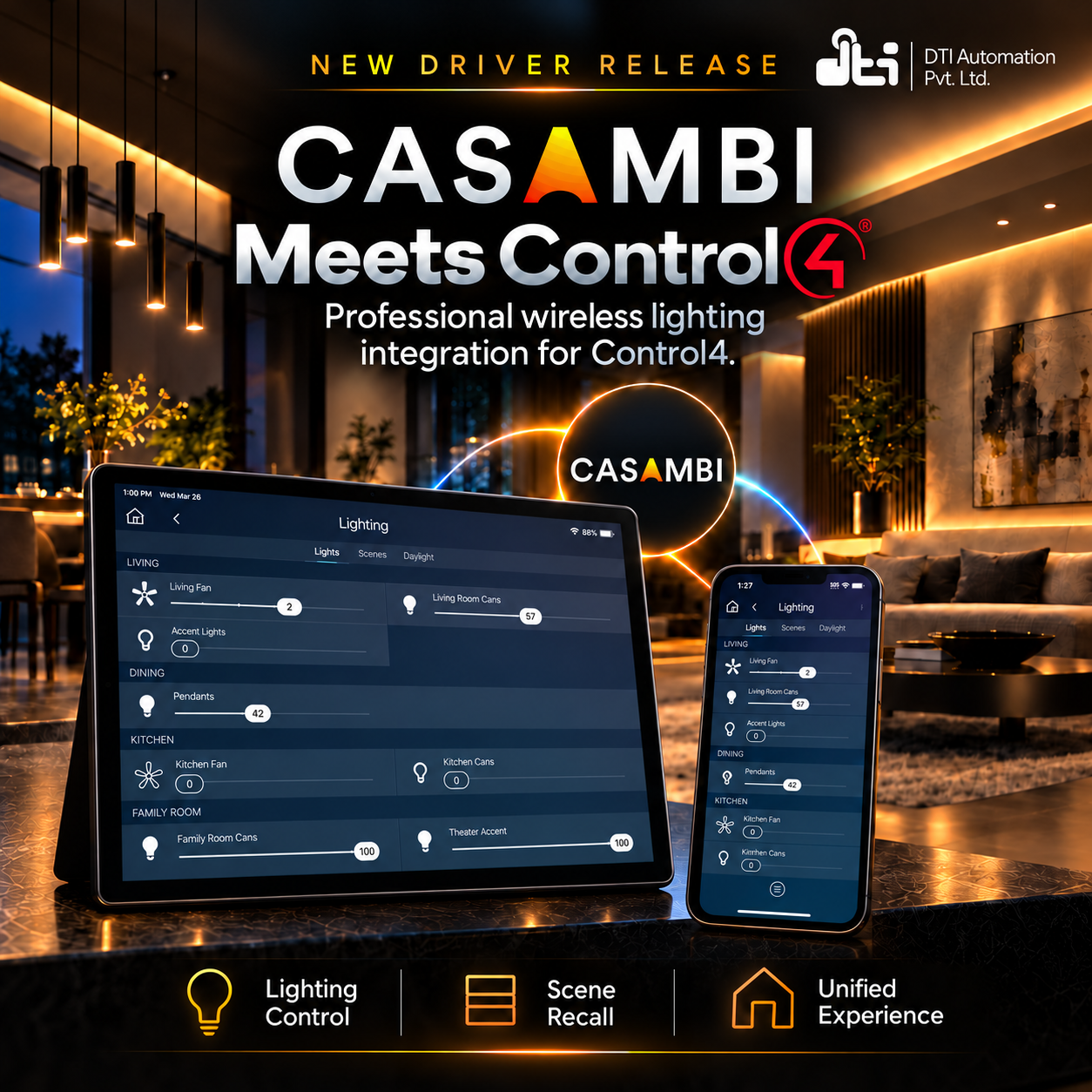
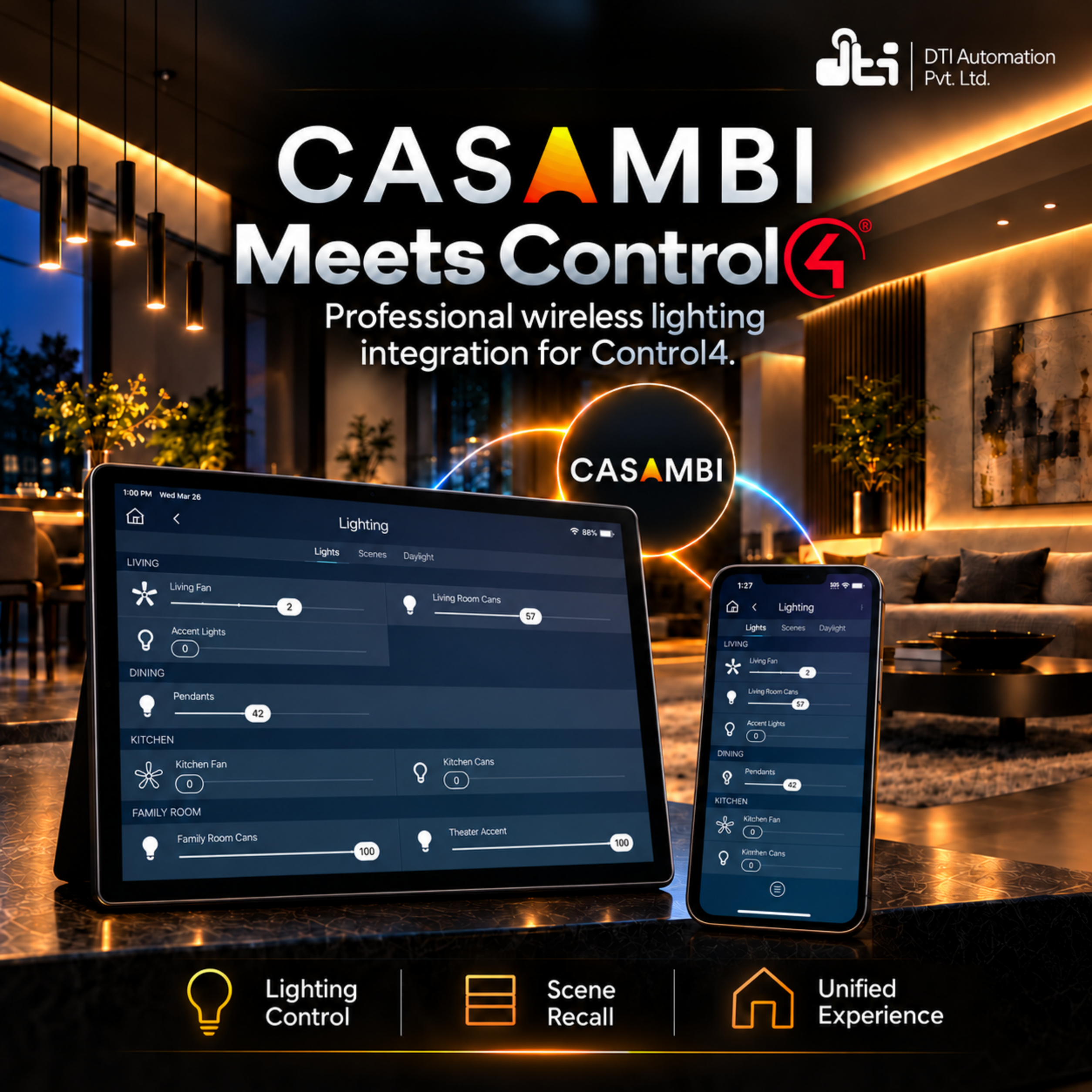
The DTI Automation Casambi driver brings a Casambi Bluetooth mesh lighting network into Control4. A Lithernet Casambi Gateway on your network carries the real-time control, so lights, groups, scenes and the whole network can be driven from the Control4 app, keypads, scenes and programming. An optional connection to the Casambi cloud reads the network’s name, lights, scenes and groups into the project, so you do not have to type them in. Apart from the Lithernet gateway, there is no helper application to host and no always-on box.
One Casambi Lithernet driver serves one gateway and its Casambi network. Add a Casambi Luminaire, Group, Keypad or 2 Relay Blind driver for each light, group, keypad or blind you want in Control4, and bind it to the Lithernet driver. The device drivers come in the same download.
Key Features
- Local first. The Lithernet gateway connects to the Control4 controller over TCP on your own network, and lighting commands go to the gateway over that connection. When the gateway link is down and the Casambi cloud is connected, a light’s level command can fall back to the cloud.
- Lights as Control4 lights. A Casambi Luminaire or Group driver is a standard Control4 light: on, off, toggle and dimming with ramp rates from the app, keypads and programming, with colour and colour temperature where the luminaire supports them.
- Scenes, groups and the whole network. Call a Casambi scene by its number at the level and fade time you choose, set or switch a group, or set or switch every light on the network, with fades of up to 60 seconds.
- Names from the Casambi app. Sign in with the Casambi cloud account and the driver reads the network name and its units, scenes and groups. They appear as connections on the Lithernet driver under the names you gave them in Casambi. The cloud connection is optional, and the Enable Cloud API property turns it off.
- Discovery without a cloud account. Without cloud credentials, the driver can instead pick up units as they report in on the gateway.
- Status feedback. Changes the gateway reports update Control4, where the Casambi network and the gateway profile report them. Actions ask the gateway for the current state of one unit or one scene, and ask it to send a status message whenever any unit changes.
- A driver for each kind of unit. Casambi Luminaire and Casambi Group on the Control4 light proxy, Casambi Keypad with eight buttons that each have press and release events, and Casambi 2 Relay Blind on the Control4 blind proxy with up, down and stop.
- Seven gateway profiles. Pick the profile that matches the Lithernet gateway, from 16 scenes and 16 groups up to 64 scenes or 64 groups. Scenes Available and Groups Available show what the chosen profile provides.
- Programming. Five commands (Trigger Scene, Control Group, Control Network, Control Unit and Send To All Clients) and nine events (Connection Changed, Gateway Online, Gateway Offline, Device State Changed, Device Online, Device Offline, Device Removed, Scene Activated and Discovery Complete).
- Recovery from the Actions tab. Connect, Disconnect and Reconnect the gateway server, Recreate All Bindings, Clear Devices to start discovery again, and Refresh Device Count.
- Tells you what it is doing. Connection Status, Gateway IP, Casambi Cloud Status, Network ID and Name, the number of units, scenes, groups and client drivers, and Driver Version on the Properties tab.
Supported Devices
- Casambi lighting networks controlled through a Lithernet Casambi Gateway
- Lights and groups on the Casambi Luminaire and Casambi Group drivers
- Keypads on the Casambi Keypad driver
- Blinds on the Casambi 2 Relay Blind driver
The download, Casambi_Driver.zip, holds the Casambi Lithernet driver and the Casambi Luminaire, Group, Keypad and 2 Relay Blind drivers.
Requirements
- Control4 OS — 3.x, with 3.4.3 or later recommended.
- A Lithernet Casambi Gateway added to the Casambi network and reachable from the Control4 controller on the same LAN or VLAN. Give the gateway and the controller a static address or a DHCP reservation. The gateway connects to the controller on TCP port 50000 by default.
- A commissioned Casambi network. Lights, groups and scenes are set up and named in the Casambi app. The driver does not commission.
- For cloud sync only: a Casambi Cloud Gateway online on the same Casambi network, and the email and password of the Casambi cloud account.
- Internet access on the Control4 controller for licence activation, and for cloud sync if you use it.
Setup
- In the Casambi app, commission the network and name the lights, groups and scenes the way you want them to appear in Control4. Add the Lithernet gateway to the network.
- Add the Casambi Lithernet driver to the project. A server room is recommended.
- In the Lithernet gateway’s web setup, go to General Settings → System → Wizard and create a connection of type TCP Casambi Command with TCP-Port 50000, Net ID 0, the Hex with dot format, and the Control4 controller’s address as System IP.
- In Composer, choose the Gateway Profile that matches the gateway. Connection Status shows the gateway connected and Gateway IP fills in.
- To read the network from the cloud, enter Cloud Email and Cloud Password, then run Actions → Refresh Cloud Data. Casambi Cloud Status reads Connected. Without a cloud account, run Discover Devices and switch some lights on and off.
- Add the Casambi Luminaire, Group, Keypad or 2 Relay Blind drivers you need from Composer’s search, and bind each one to the Lithernet driver on the Connections tab.
Full dealer documentation — setup, every property and action with its inputs and ranges, and troubleshooting — ships inside the driver on its own Documentation tab in Composer.
Licensing
Sold and licensed through DriverCentral, with a free showroom licence for dealers and optional automatic updates.
The driver does not control lights without a valid licence. Until it is licensed, the driver stops the gateway connection and the Casambi cloud connection and refuses every command that connects, discovers or controls lights, and Connection Status says why. It keeps the units, scenes, groups and connections it has already discovered.
This driver can be licensed through DriverCentral or directly through DTI Automation, and a valid licence from either works. Set Activation Method at the top of the Properties tab to match where you bought it, and only that licence’s fields are shown. A new install runs a 30-day trial: Cloud Status shows DriverCentral’s, and Activation Status shows DTI’s. Casambi Cloud Status is a different row, the connection to the Casambi cloud.
Support
Technical support is available through https://help.drivercentral.io. Customers who bought directly from DTI Automation can also write to support@dtiautomation.com.
Before raising a ticket, have the Driver Version, Connection Status and Casambi Cloud Status values, the Lithernet gateway’s address and firmware, the Casambi network name, and your Control4 controller model and OS version. Those answer most of the first round of questions.
Driver by DTI Automation Pvt. Ltd. Casambi and Lithernet are trademarks of their respective owners; this driver is not made by, endorsed by or affiliated with them.
Driver documentation ships inside the driver itself, on its own Documentation tab in Composer. It covers setup, every property and action with its inputs and ranges, and troubleshooting.
- Ver:362 First release. Casambi lighting through the Lithernet Casambi Gateway: local control of lights, groups, scenes and the whole network, optional Casambi cloud sync of the network’s names, Luminaire, Group, Keypad and 2 Relay Blind drivers, programming commands and events, and a Documentation tab — licensed through DriverCentral or DTI Automation.
